

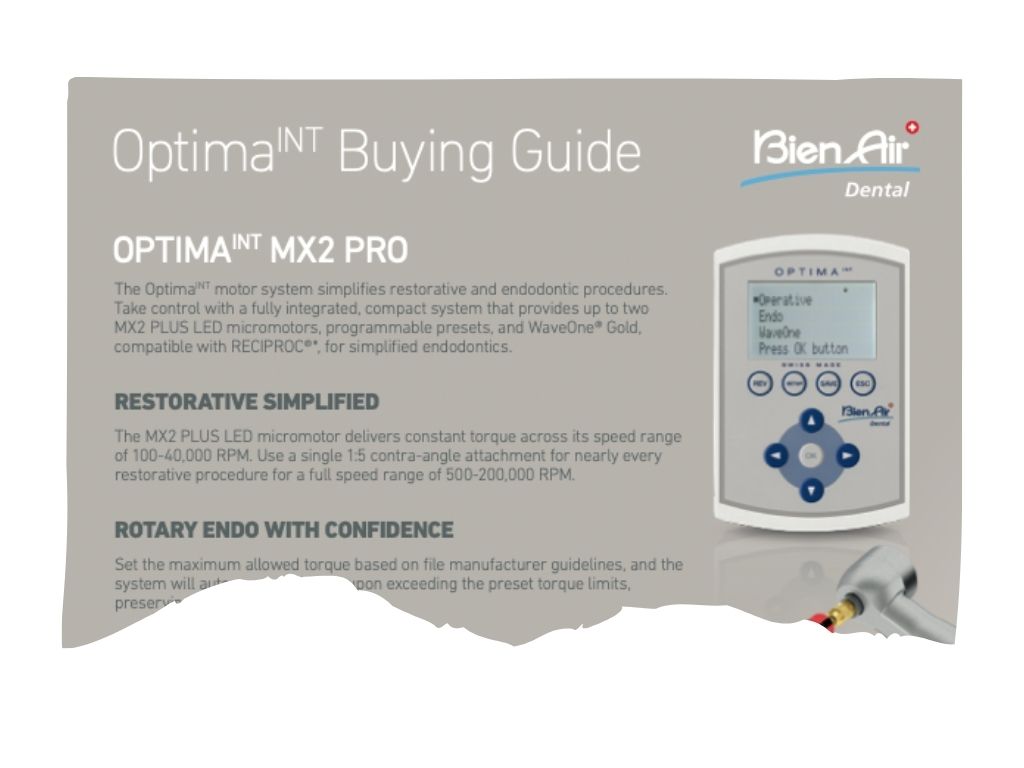
All About The OptimaINT
Â
Welcome, !
Below are multiple, short, and interactive resources that highlight the full functionality of the OptimaINT. You can use the table of contents below to jump to a specific item, or you can scroll through. In order to complete this course, If you run into any issues, please email: [email protected]
• Optima Overview • How to Use • Other Helpful Resources •
Overview Video
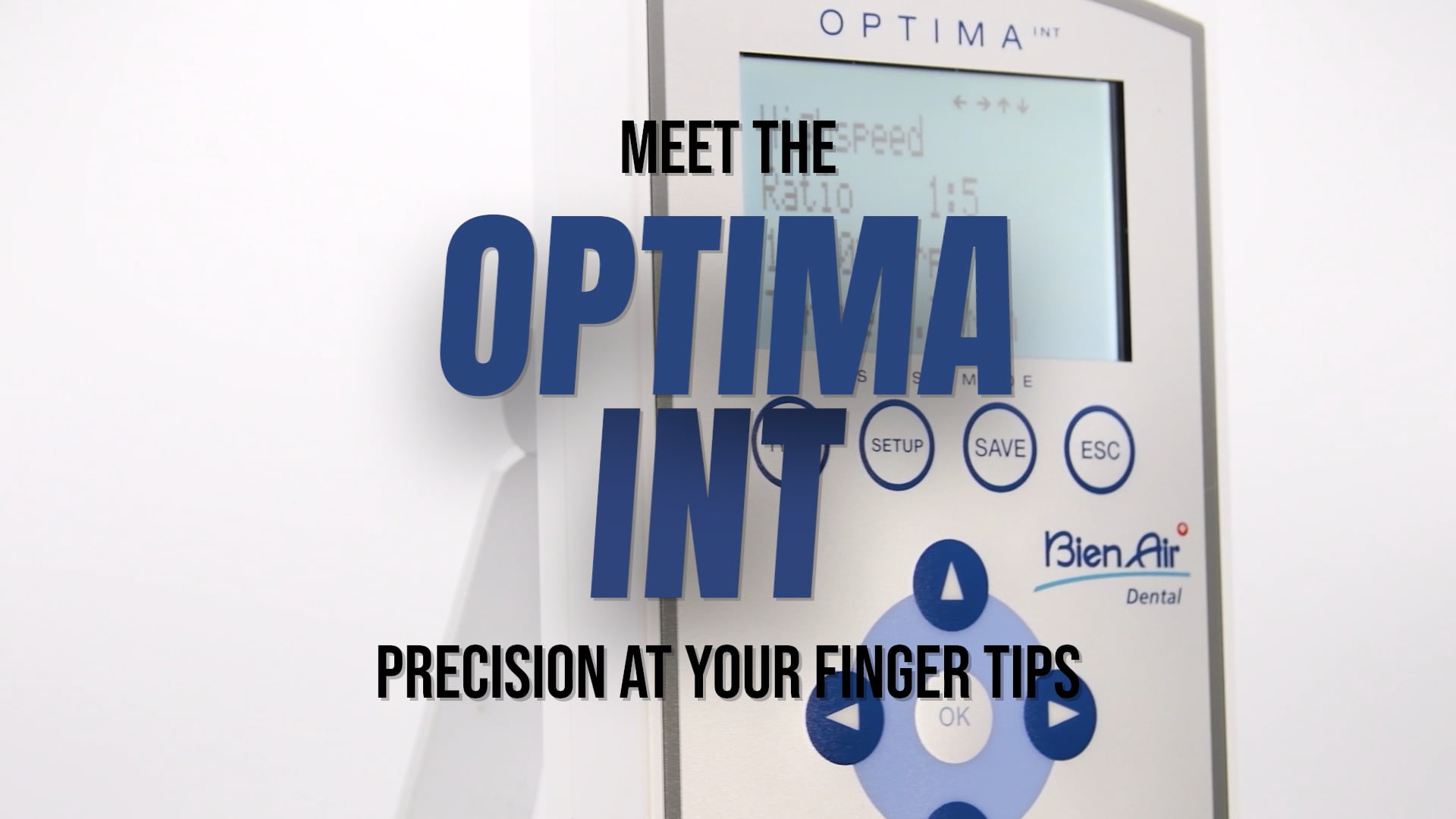
Meet the Optima INT
In this short video, you’ll learn about all of the unique characteristics of the OptimaINT. After watching the entire video, you’ll have access to the quiz (at the very bottom of this page). You’ll need to score 100% on the quiz to complete this course. Below are more resources for you to look at regarding the OptimaINT before you take the quiz.
How to Use
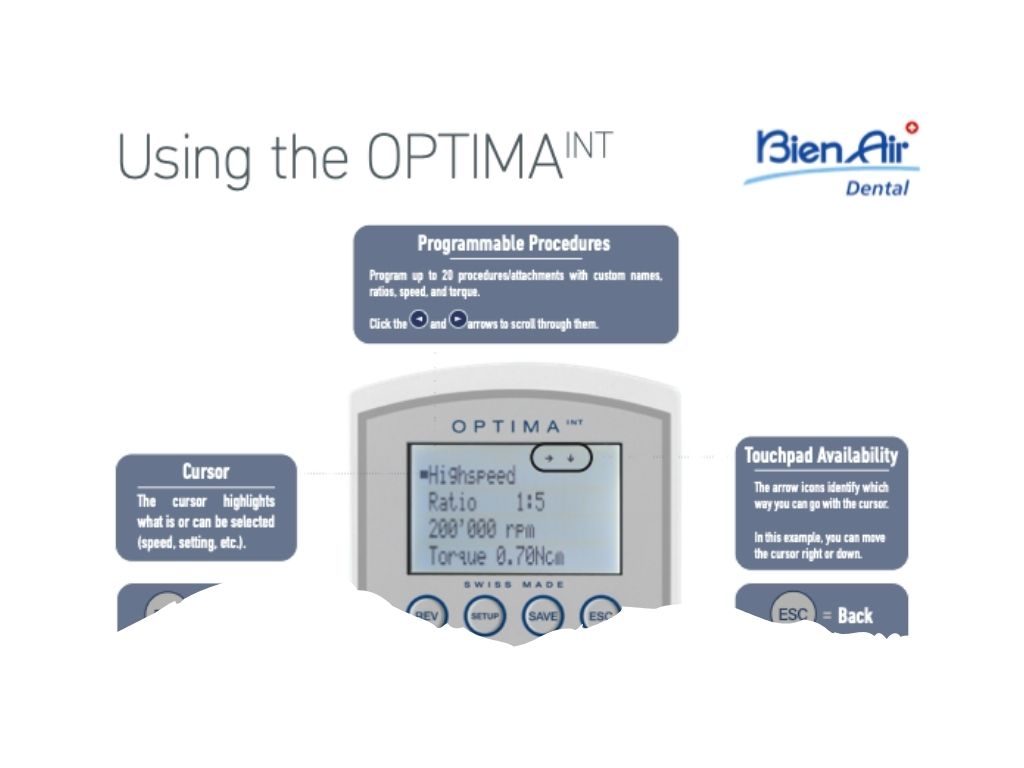
Cursor
• The black box is your cursor.
• When the black box is over text (like Highspeed), you can use the "Ok" button to select, or the left and right arrow to adjust.
Ratio
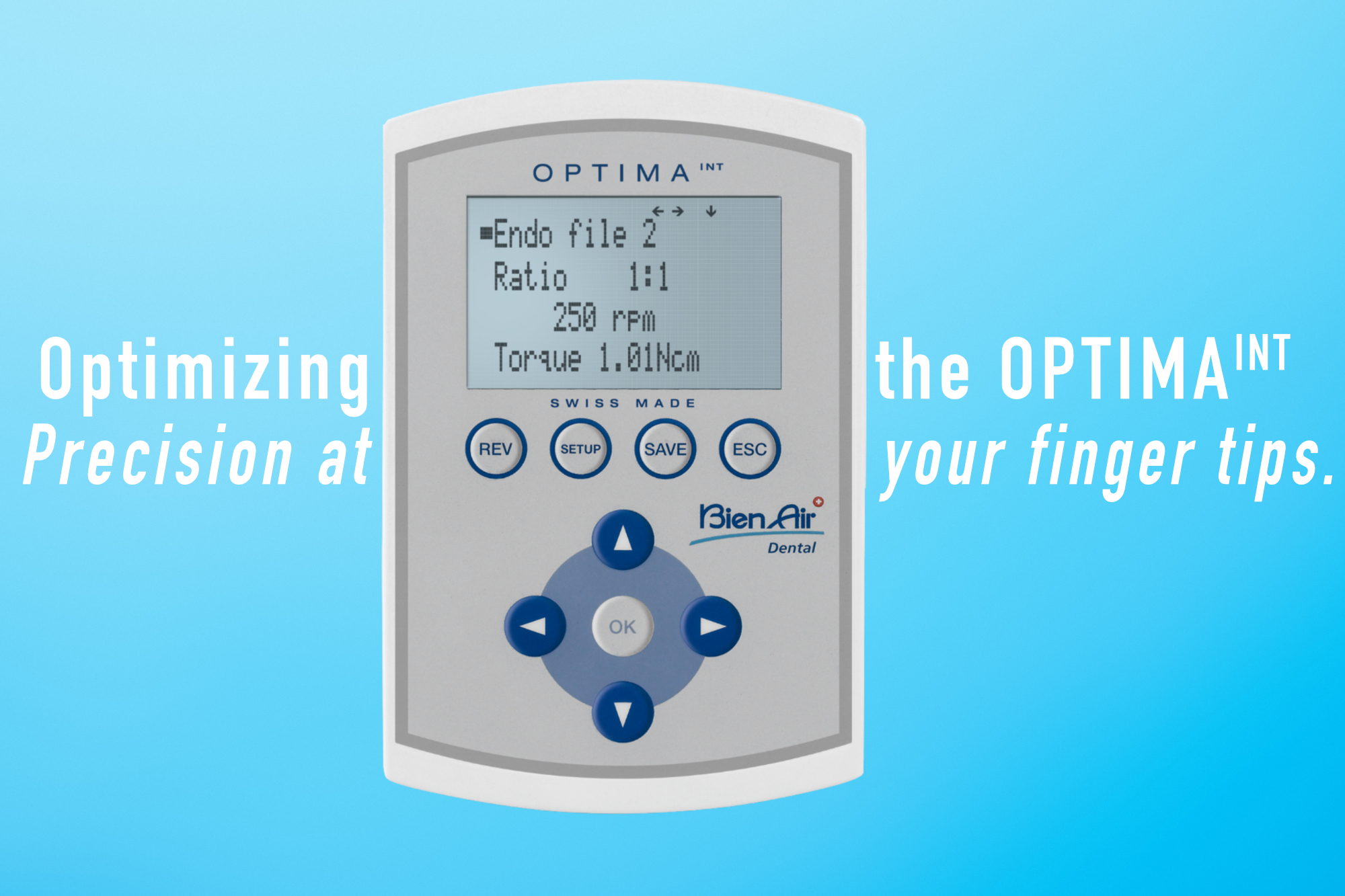
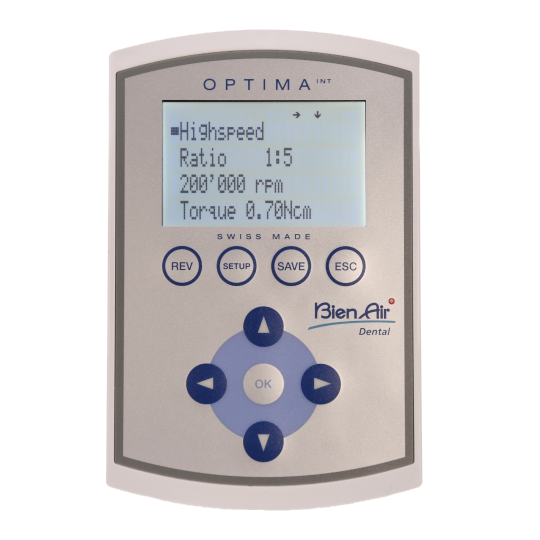
•Always check to ensure the ratio on the screen matches the ratio on the attachment you are using for the most accurate speed reading.
Arrows
• The arrows at the top indicate which directional touchpad buttons you can use based on where your cursor is.
REV = Reverse
• Pressing this button will make your attachment spin the bur counter clockwise, or in reverse.
SETUP
• This button will allow you to make setting adjustments, including light intensity, language, sound, and more!
• NOTE: This feature may be disabled in university settings.
SAVE = New Program & Save
• Whenever you make a change in SETUP, press the SAVE button to make the change permanent.
• To program a new attachment, procedure, or file, click "Save" to start the process.
ESC = Back
• This is your "Back" button, it will take you back to the previous screen
OK = SELECT
• Press this button to select what you want to adjust. Once you press it, you can use the Up, Down, Left, and Right arrows to adjust the settings.
Helpful Resources
You must log in and have started this course to submit a review.
